

Big-Note: Use this script wisely!
Method #1
How to use Method #1
- Open the PDF from Google Drive,
- Click Preview,
- Then on top right page click on three vertical dots menu -> Open in new window,
- Scroll down pdf to end of content and make sure all of content is loaded,
- Inspect element your browser and go to console tab,
- Type
allow pastingand press ENTER, if you are using Chrome and cannot paste any code directly in the console tab,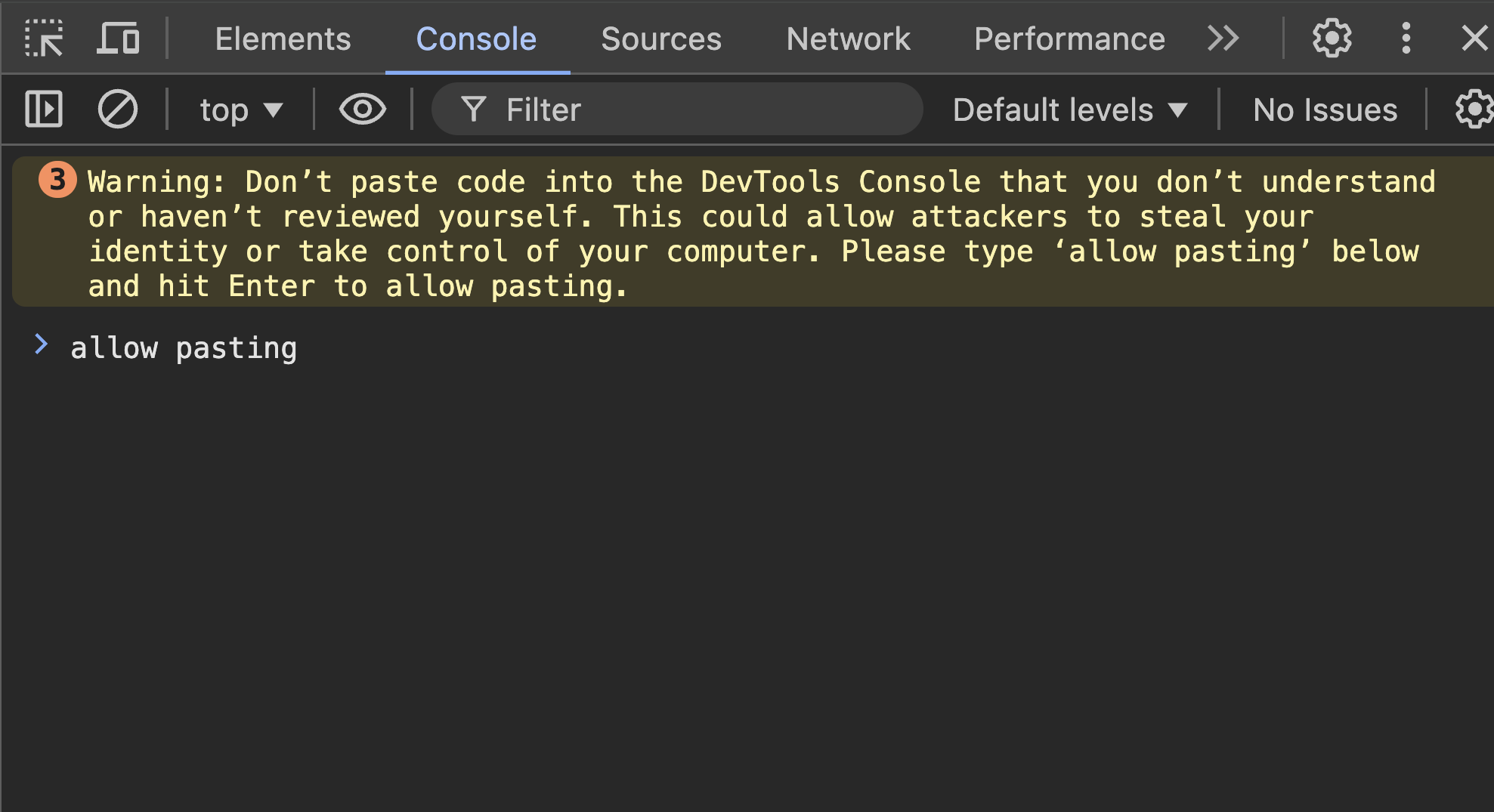
- Copy and paste Method #1 on console tab\
Method #2
How to use Method #2
Use this method only for PDF with less than 20 pages, if you experience any errors or slow down then follow Method 1
- Open the PDF from Google Drive,
- Click Preview,
- Then on top right page click on three vertical dots menu -> Open in new window,
- Scroll down pdf to end of content and make sure all of content is loaded,
- Inspect element your browser and go to console tab,
- Type
allow pastingand press ENTER, if you are using Chrome and cannot paste any code directly in the console tab\
Tips for Method 2
- You should give a custom file name by changing the place holder “Document” to “Cool_File_Name” in “Method_2_Script.js”. Do not include “.pdf” file extension along with the document name here!
- By default this script will download PDF file with the highest quality available, but just in case if you need even better quality simply zoom in your browser (eg: 130% to 150%) then follow the above steps to download. If you increase the zoom level more than 150% will struggle to generate the PDF.