> ## Documentation Index
> Fetch the complete documentation index at: https://vault.billoxd.site/llms.txt
> Use this file to discover all available pages before exploring further.
# How to Download Google drive locked PDF
This script works like a screenshot capturing all pdf pages to bulk of images with better resolution quality and combine it all into one pdf file.
**Big-Note: Use this script wisely!**
Below Are few Methods to download the View Only PDF
## Method #1
```javascript theme={null}
(function () {
console.log("Loading script ...");
let script = document.createElement("script");
script.onload = function () {
const { jsPDF } = window.jspdf;
// Generate a PDF from images with "blob:" sources.
let pdf = null;
let imgElements = document.getElementsByTagName("img");
let validImgs = [];
console.log("Scanning content ...");
for (let i = 0; i < imgElements.length; i++) {
let img = imgElements[i];
// specific check for Google Drive blob images
let checkURLString = "blob:https://drive.google.com/";
if (img.src.substring(0, checkURLString.length) !== checkURLString) {
continue;
}
validImgs.push(img);
}
console.log(`${validImgs.length} content found!`);
console.log("Generating PDF file ...");
for (let i = 0; i < validImgs.length; i++) {
let img = validImgs[i];
// Convert image to DataURL via Canvas
let canvasElement = document.createElement("canvas");
let con = canvasElement.getContext("2d");
canvasElement.width = img.naturalWidth;
canvasElement.height = img.naturalHeight;
con.drawImage(img, 0, 0, img.naturalWidth, img.naturalHeight);
let imgData = canvasElement.toDataURL();
// Determine orientation and dimensions for THIS specific image
let orientation = img.naturalWidth > img.naturalHeight ? "l" : "p";
let pageWidth = img.naturalWidth;
let pageHeight = img.naturalHeight;
if (i === 0) {
// Initialize PDF with the dimensions of the FIRST image
pdf = new jsPDF({
orientation: orientation,
unit: "px",
format: [pageWidth, pageHeight],
});
} else {
// For subsequent images, add a new page with THAT image's specific dimensions
pdf.addPage([pageWidth, pageHeight], orientation);
}
// Add the image to the current page
pdf.addImage(imgData, "PNG", 0, 0, pageWidth, pageHeight, "", "SLOW");
const percentages = Math.floor(((i + 1) / validImgs.length) * 100);
console.log(`Processing content ${percentages}%`);
}
// Check if title contains .pdf in end of the title
// Use optional chaining to avoid errors if the meta tag isn't present.
// Fall back to document.title when necessary. Note: if the PDF is inside a cross-origin iframe,
// parent scripts cannot access the iframe document due to same-origin policy.
let title = document.querySelector('meta[itemprop="name"]')?.content || document.title || 'download.pdf';
if ((title.split(".").pop() || "").toLowerCase() !== "pdf") {
title = title + ".pdf";
}
// Download the generated PDF.
console.log("Downloading PDF file ...");
pdf.save(title, { returnPromise: true }).then(() => {
document.body.removeChild(script);
console.log("PDF downloaded!");
});
};
// Load the jsPDF library using the trusted URL.
let scriptURL = "https://unpkg.com/jspdf@latest/dist/jspdf.umd.min.js";
let trustedURL;
if (window.trustedTypes && trustedTypes.createPolicy) {
const policy = trustedTypes.createPolicy("myPolicy", {
createScriptURL: (input) => {
return input;
},
});
trustedURL = policy.createScriptURL(scriptURL);
} else {
trustedURL = scriptURL;
}
script.src = trustedURL;
document.body.appendChild(script);
})();
```
## How to use Method #1
1. Open the **PDF from Google Drive**,
2. Click Preview,
3. Then on top right page click on three vertical dots menu -> Open in new window,
4. Scroll down pdf to end of content and make sure all of content is loaded,
5. Inspect element your browser and go to console tab,
6. Type `allow pasting` and press ENTER, if you are using Chrome and cannot paste any code directly in the console tab,
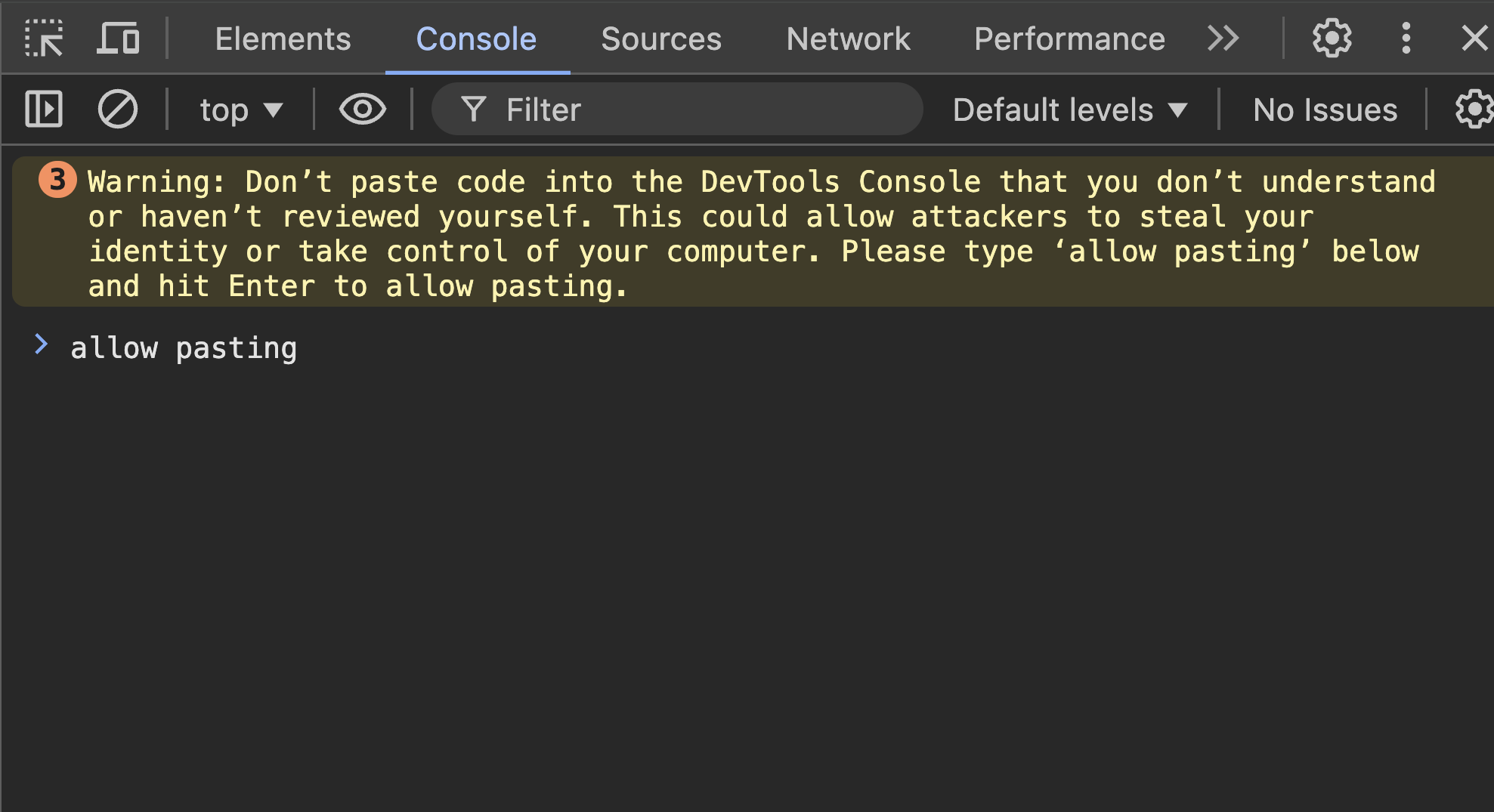 7. Copy and paste Method #1 on console tab\\
## Method #2
```javascript theme={null}
let jspdf = document.createElement("script");
jspdf.onload = function () {
let pdfDocumentName = "Document";
let doc;
function generatePDF (){
let imgTags = document.getElementsByTagName("img");
let checkURLString = "blob:https://drive.google.com/";
let validImgTagCounter = 0;
for (i = 0; i < imgTags.length; i++) {
if (imgTags[i].src.substring(0, checkURLString.length) === checkURLString){
validImgTagCounter = validImgTagCounter + 1;
//console.log(imgTags[i].src);
let img = imgTags[i];
let canvas = document.createElement('canvas');
let context = canvas.getContext("2d");
canvas.width = img.naturalWidth;
canvas.height = img.naturalHeight;
//console.log("Width: " + img.naturalWidth + ", Height: " + img.naturalHeight);
context.drawImage(img, 0, 0, img.naturalWidth, img.naturalHeight);
let imgDataURL = canvas.toDataURL();
// console.log(imgDataURL);
//let ratio;
let orientation;
if (img.naturalWidth > img.naturalHeight){
//console.log("Landscape");
orientation = "l";
//ratio = img.naturalWidth/img.naturalHeight
}else {
//console.log("Portrait");
orientation = "p";
//ratio = img.naturalWidth/img.naturalHeight
}
let scalefactor = 1.335;
let pageWidth = img.naturalWidth * scalefactor;
let pageHeight = img.naturalHeight * scalefactor;
//let imagexLeft = (pageWidth - img.naturalWidth)/2;
//let imagexTop = (pageHeight - img.naturalHeight)/2;
if (validImgTagCounter === 1){
doc = new jsPDF({
orientation: orientation,
unit: "px",
format: [pageWidth, pageHeight],
});
doc.addImage(imgDataURL, "PNG", 0, 0, img.naturalWidth, img.naturalHeight);
}else{
doc.addPage([pageWidth, pageHeight] , orientation);
doc.addImage(imgDataURL, "PNG", 0, 0, img.naturalWidth, img.naturalHeight);
}
}
}
pdfDocumentName = pdfDocumentName + ".pdf";
doc.save(pdfDocumentName);
}
let allElements = document.querySelectorAll("*");
let chosenElement;
let heightOfScrollableElement = 0;
for (i = 0; i < allElements.length; i++) {
if ( allElements[i].scrollHeight>=allElements[i].clientHeight){
if (heightOfScrollableElement < allElements[i].scrollHeight){
//console.log(allElements[i]);
//console.log(allElements[i].scrollHeight);
heightOfScrollableElement = allElements[i].scrollHeight;
chosenElement = allElements[i];
}
}
}
if (chosenElement.scrollHeight > chosenElement.clientHeight){
console.log("Auto Scroll");
let scrollDistance = Math.round(chosenElement.clientHeight/2);
//console.log("scrollHeight: " + chosenElement.scrollHeight);
//console.log("scrollDistance: " + scrollDistance);
let loopCounter = 0;
function myLoop(remainingHeightToScroll, scrollToLocation) {
loopCounter = loopCounter+1;
console.log(loopCounter);
setTimeout(function() {
if (remainingHeightToScroll === 0){
scrollToLocation = scrollDistance;
chosenElement.scrollTo(0, scrollToLocation);
remainingHeightToScroll = chosenElement.scrollHeight - scrollDistance;
}else{
scrollToLocation = scrollToLocation + scrollDistance ;
chosenElement.scrollTo(0, scrollToLocation);
remainingHeightToScroll = remainingHeightToScroll - scrollDistance;
}
if (remainingHeightToScroll >= chosenElement.clientHeight){
myLoop(remainingHeightToScroll, scrollToLocation)
}else{
setTimeout(function() {
generatePDF();
}, 1500)
}
}, 500)
}
myLoop(0, 0);
}else{
console.log("No Scroll");
setTimeout(function() {
generatePDF();
}, 1500)
}
};
jspdf.src = 'https://cdnjs.cloudflare.com/ajax/libs/jspdf/1.5.3/jspdf.debug.js';
document.body.appendChild(jspdf);
```
## **How to use Method #2**
#### **Use this method only for PDF with less than 20 pages, if you experience any errors or slow down then follow Method 1**
1. Open the **PDF from Google Drive**,
2. Click Preview,
3. Then on top right page click on three vertical dots menu -> Open in new window,
4. Scroll down pdf to end of content and make sure all of content is loaded,
5. Inspect element your browser and go to console tab,
6. Type `allow pasting` and press ENTER, if you are using Chrome and cannot paste any code directly in the console tab\\
## **Tips for Method 2**
* You should give a custom file name by changing the place holder "Document" to "Cool\_File\_Name" in **"Method\_2\_Script.js"**. Do not include **".pdf"** file extension along with the document name here!
```text theme={null}
let pdfDocumentName = "Document";
```
Change to this
```text theme={null}
let pdfDocumentName = "Cool_File_Name";
```
* By default this script will download PDF file with the highest quality available, but just in case if you need even better quality simply zoom in your browser (eg: 130% to 150%) then follow the above steps to download. If you increase the zoom level more than 150% will struggle to generate the PDF.
***
### Credits:
Method #1: [https://github.com/zavierferodova/Google-Drive-View-Only-PDF-Script-Downloader](https://github.com/zavierferodova/Google-Drive-View-Only-PDF-Script-Downloader)
Method #2 [https://github.com/zeltox/Google-Drive-PDF-Downloader](https://github.com/zeltox/Google-Drive-PDF-Downloader)
7. Copy and paste Method #1 on console tab\\
## Method #2
```javascript theme={null}
let jspdf = document.createElement("script");
jspdf.onload = function () {
let pdfDocumentName = "Document";
let doc;
function generatePDF (){
let imgTags = document.getElementsByTagName("img");
let checkURLString = "blob:https://drive.google.com/";
let validImgTagCounter = 0;
for (i = 0; i < imgTags.length; i++) {
if (imgTags[i].src.substring(0, checkURLString.length) === checkURLString){
validImgTagCounter = validImgTagCounter + 1;
//console.log(imgTags[i].src);
let img = imgTags[i];
let canvas = document.createElement('canvas');
let context = canvas.getContext("2d");
canvas.width = img.naturalWidth;
canvas.height = img.naturalHeight;
//console.log("Width: " + img.naturalWidth + ", Height: " + img.naturalHeight);
context.drawImage(img, 0, 0, img.naturalWidth, img.naturalHeight);
let imgDataURL = canvas.toDataURL();
// console.log(imgDataURL);
//let ratio;
let orientation;
if (img.naturalWidth > img.naturalHeight){
//console.log("Landscape");
orientation = "l";
//ratio = img.naturalWidth/img.naturalHeight
}else {
//console.log("Portrait");
orientation = "p";
//ratio = img.naturalWidth/img.naturalHeight
}
let scalefactor = 1.335;
let pageWidth = img.naturalWidth * scalefactor;
let pageHeight = img.naturalHeight * scalefactor;
//let imagexLeft = (pageWidth - img.naturalWidth)/2;
//let imagexTop = (pageHeight - img.naturalHeight)/2;
if (validImgTagCounter === 1){
doc = new jsPDF({
orientation: orientation,
unit: "px",
format: [pageWidth, pageHeight],
});
doc.addImage(imgDataURL, "PNG", 0, 0, img.naturalWidth, img.naturalHeight);
}else{
doc.addPage([pageWidth, pageHeight] , orientation);
doc.addImage(imgDataURL, "PNG", 0, 0, img.naturalWidth, img.naturalHeight);
}
}
}
pdfDocumentName = pdfDocumentName + ".pdf";
doc.save(pdfDocumentName);
}
let allElements = document.querySelectorAll("*");
let chosenElement;
let heightOfScrollableElement = 0;
for (i = 0; i < allElements.length; i++) {
if ( allElements[i].scrollHeight>=allElements[i].clientHeight){
if (heightOfScrollableElement < allElements[i].scrollHeight){
//console.log(allElements[i]);
//console.log(allElements[i].scrollHeight);
heightOfScrollableElement = allElements[i].scrollHeight;
chosenElement = allElements[i];
}
}
}
if (chosenElement.scrollHeight > chosenElement.clientHeight){
console.log("Auto Scroll");
let scrollDistance = Math.round(chosenElement.clientHeight/2);
//console.log("scrollHeight: " + chosenElement.scrollHeight);
//console.log("scrollDistance: " + scrollDistance);
let loopCounter = 0;
function myLoop(remainingHeightToScroll, scrollToLocation) {
loopCounter = loopCounter+1;
console.log(loopCounter);
setTimeout(function() {
if (remainingHeightToScroll === 0){
scrollToLocation = scrollDistance;
chosenElement.scrollTo(0, scrollToLocation);
remainingHeightToScroll = chosenElement.scrollHeight - scrollDistance;
}else{
scrollToLocation = scrollToLocation + scrollDistance ;
chosenElement.scrollTo(0, scrollToLocation);
remainingHeightToScroll = remainingHeightToScroll - scrollDistance;
}
if (remainingHeightToScroll >= chosenElement.clientHeight){
myLoop(remainingHeightToScroll, scrollToLocation)
}else{
setTimeout(function() {
generatePDF();
}, 1500)
}
}, 500)
}
myLoop(0, 0);
}else{
console.log("No Scroll");
setTimeout(function() {
generatePDF();
}, 1500)
}
};
jspdf.src = 'https://cdnjs.cloudflare.com/ajax/libs/jspdf/1.5.3/jspdf.debug.js';
document.body.appendChild(jspdf);
```
## **How to use Method #2**
#### **Use this method only for PDF with less than 20 pages, if you experience any errors or slow down then follow Method 1**
1. Open the **PDF from Google Drive**,
2. Click Preview,
3. Then on top right page click on three vertical dots menu -> Open in new window,
4. Scroll down pdf to end of content and make sure all of content is loaded,
5. Inspect element your browser and go to console tab,
6. Type `allow pasting` and press ENTER, if you are using Chrome and cannot paste any code directly in the console tab\\
## **Tips for Method 2**
* You should give a custom file name by changing the place holder "Document" to "Cool\_File\_Name" in **"Method\_2\_Script.js"**. Do not include **".pdf"** file extension along with the document name here!
```text theme={null}
let pdfDocumentName = "Document";
```
Change to this
```text theme={null}
let pdfDocumentName = "Cool_File_Name";
```
* By default this script will download PDF file with the highest quality available, but just in case if you need even better quality simply zoom in your browser (eg: 130% to 150%) then follow the above steps to download. If you increase the zoom level more than 150% will struggle to generate the PDF.
***
### Credits:
Method #1: [https://github.com/zavierferodova/Google-Drive-View-Only-PDF-Script-Downloader](https://github.com/zavierferodova/Google-Drive-View-Only-PDF-Script-Downloader)
Method #2 [https://github.com/zeltox/Google-Drive-PDF-Downloader](https://github.com/zeltox/Google-Drive-PDF-Downloader)